
Install a Civitai model that is not on ModelTrends
This guide is for a checkpoint, LoRA or embedding you found on Civitai that is not listed on ModelTrends yet. You host the .safetensors file on your own Hugging Face account and tell PirateDiffusion where to download it. You do not need ModelTrends one-click install for this path.
If the model already has a ShortCode on ModelTrends, install it from the catalog on Graydient instead: install from ModelTrends.
What you need
- A PirateDiffusion bot connected to a Graydient GPU plan (Telegram, Discord or the web apps).
- The model file from Civitai saved on your computer (usually a
.safetensorsfile). - A free Hugging Face account.
1. Create a Hugging Face account
Sign up at huggingface.co/join if you do not have one.
2. Create a model repo and open Files
Open huggingface.co/new to create a model repository. Filling out the model card is optional. You can go straight to the Files tab and upload there.
You can reuse the same repository for every model you self-install. Upload each .safetensors into that repo’s Files folder.
File names: do not use spaces or international characters in the file name. Unix download paths break on those characters. Use plain ASCII, for example my-lora-v2.safetensors.
3. Copy the download link
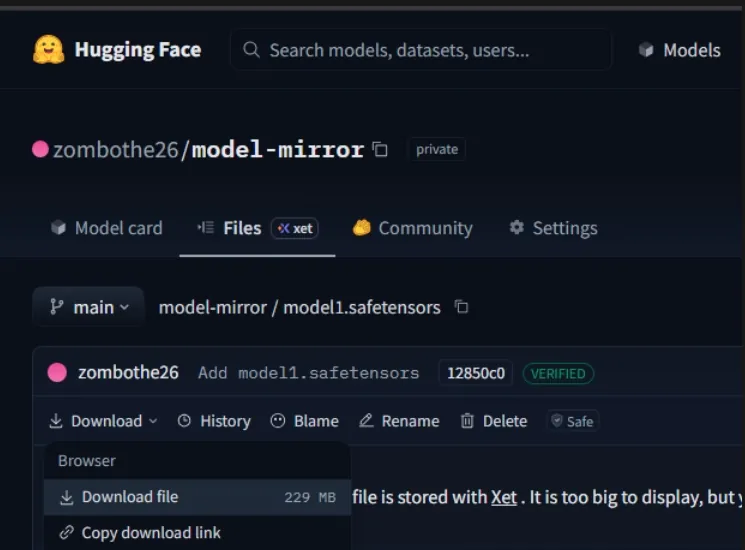
After the upload finishes, stay on the Files tab, open your file, press Download, then choose Copy download link. Keep that URL for the next step.
4. Register the model in PirateDiffusion
In Telegram or the PirateDiffusion web UI, run:
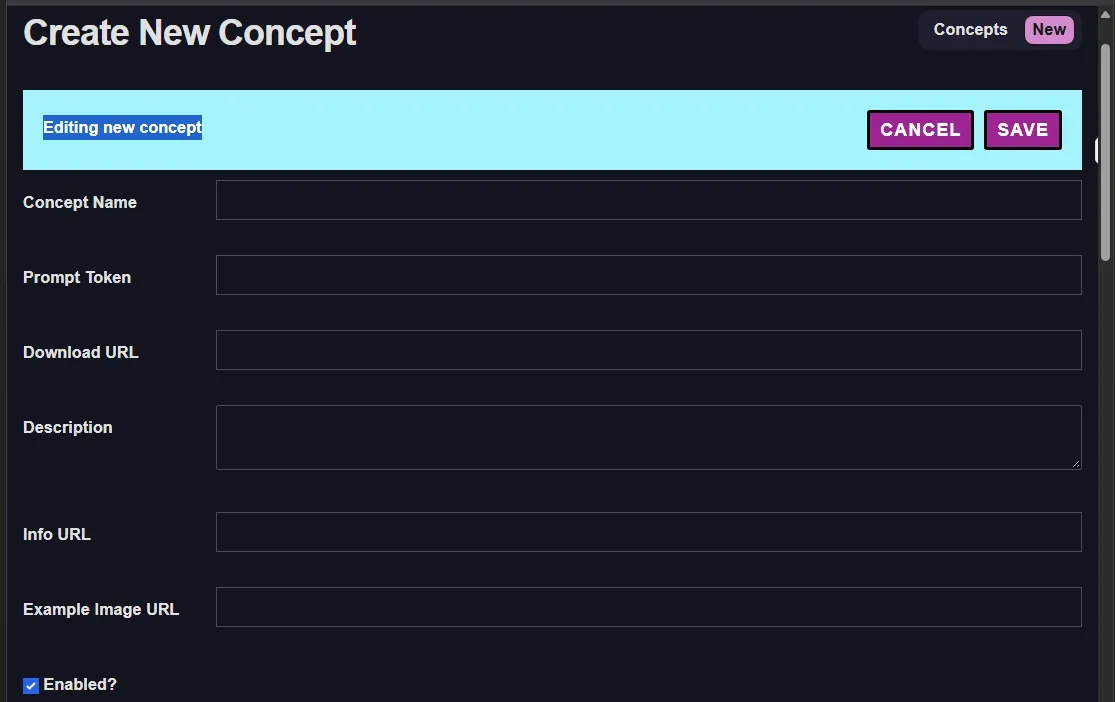
/concept /edit
The Create New Concept form opens. Paste the Hugging Face download link into Download URL. Fill in Concept Name, Prompt Token (the shortcode you will type in prompts), and optional description and example image URL from the Civitai page. Leave Enabled? checked, then press SAVE.
5. Use the model
After save, use the prompt token in renders the same way as other concepts, for example <lora:your-token> with a matching base model family from the Civitai page (SDXL with SDXL, Flux with Flux, and so on).
Graydient dashboard import
If you subscribe to Graydient and prefer Model Import in the web dashboard (paste a Civitai page link instead of hosting the file yourself), that is a separate flow on Graydient. This guide is only for the Hugging Face plus /concept /edit path.