
Beginner’s lesson: create an SDXL fat cat with /render (2024)
·
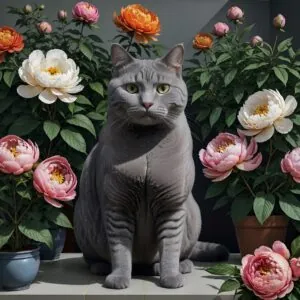
Beginner’s Lesson: Create an SDXL Fat Cat
60 seconds
Prep: First, login to your account. Everything is preinstalled on our AI cloud. You can do this on any PC or smartphone.
Example 1: Let’s make a realistic cat
Click on your @piratediffusion_bot and copy this command into it:
/render a beautiful gray chubby cat in a garden #sdxlreal
A message like this will appear, confirming that your request was formatted correctly. This is telling us that five images will appear within the next 34 seconds.
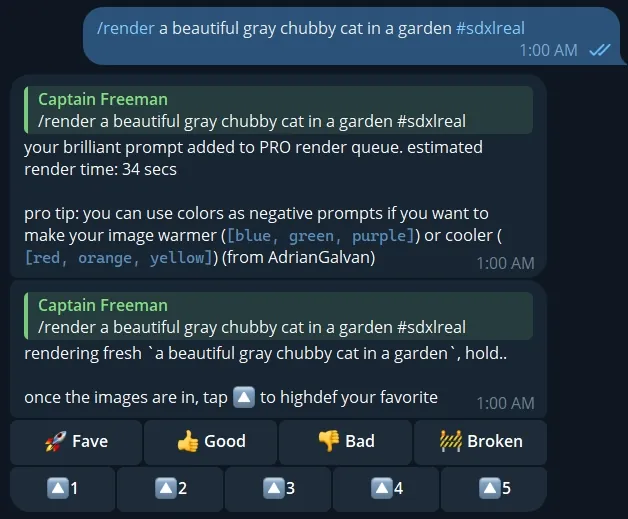
These buttons allow upvoting and upscaling your results. Wait for the drafts appear first…
And we’re done, it’s that easy.
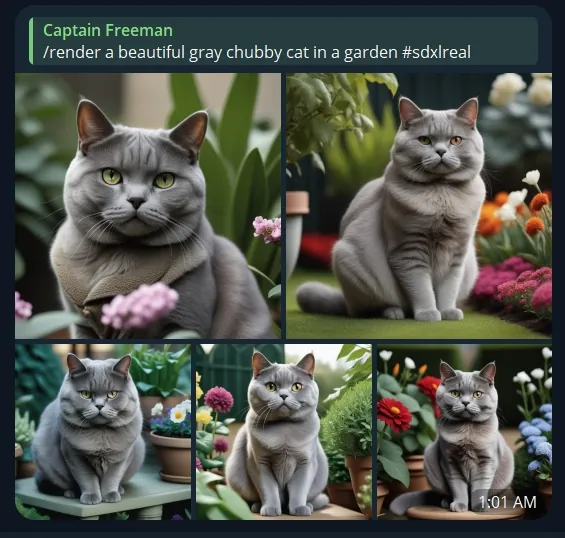
Experiment on your own:
- the /render command tells the AI to make a picture
- the words following the render command are the instructions
- #sdxl is a shorthand for an art style, Stable Diffusion XL
- #sdxlreal is shorthand for #sdxl realistic vision, a fine-tuned variant
- To browse more shorthand prompt ideas, type /recipes
- To manually pick your own AI art style, type /concepts
Example 2: Let’s make an artistic fancy cat
But let’s make a fancier cat.
The more descriptive you are, the better your results will be. Copy this tricky prompt, created by one of our community members, Tomato:
/render ((best quality,highres, masterpiece, vibrant)) by Julio Larraz, big garden, beautiful gray chubby cat, British short hair, plants, peonies, liminal, patterns, big room, free space, intricate nature, additional details, realistic cat (8K UHD, hyper realistic,highly detailed,intricate detail,perfect lighting,award-winning photo,dynamic,detailed background,vibrant colours,background details,reflections,ultrasharp focus,crisp edges,perfect image) [[low resolution, worst quality, blurry, plain background, white background, simple background, normal quality,bad quality]] #sdxlreal
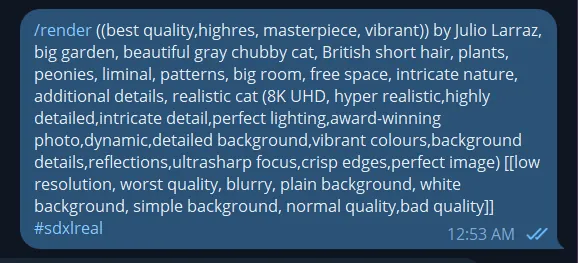
and we get our confirmation…
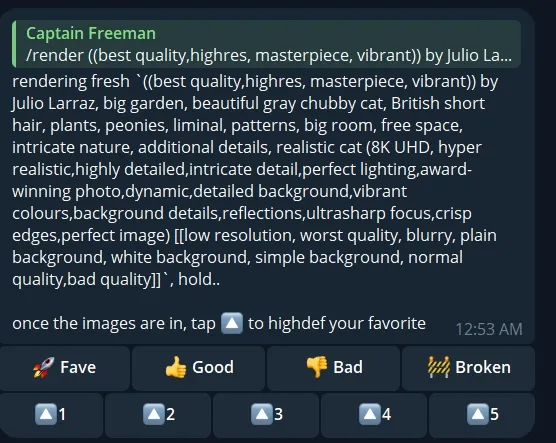
Notice the up arrows. We can Upscale the images after the drafts are created. This button is called HighDef. You can also reply to images with /highdef
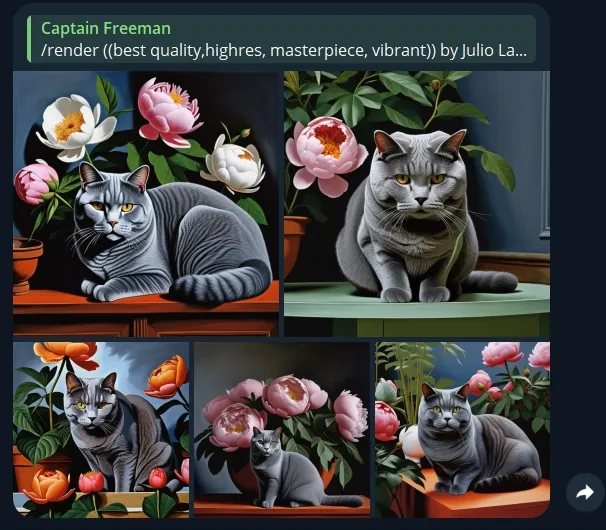
As you can see, by changing the prompt around slightly, we achieved a very different result.
What’s different this time
- #sdxlreal is a different recipe, a quick shorthand. It can be selected from the menu, or typed to save time
- Positive words are nested in round brackets (like this). Each pair of nested round brackets adds 1.1x emphasis
- Negative words are nested in square brackets [like this]. Nesting more subtracts 1.1x emphasis per
Positives and Negatives
Positive prompts and Negative prompts are words that tell the AI about what we do and don’t want to see. Humans don’t typically communicate this way, so it may seem a little unusual at first, but in a very noisy environment we might say “not that, but this!” and that’s essentially what we are doing. Literally ((give me what I want)) [[but, not, these, things]]. ((pretty cat)) [[ugly cat]]. You want a (cat) but not a [dog]. This prompting style gives you both power and precision.
Another example: Imagine trying to order a chocolate donut in a very noisy, shouty cafeteria. Talking to an AI is a little like this. You can ask for a chocolate donut, so it’s so much clearer if you say that you want a ((chocolate donut)) [[strawberry, vanilla, almond]]. It really drives the point home.
While it may seem redundant, you can also say ((give me good pictures)) [[but not bad pictures]] every time. There are better ways to express this than typing out such things every time, which we’ll get to in the Embeddings tutorial.
Summary
You understand that choosing a specific art style is possible, and that there are positive and negative ways to reinforce the AI to understand you better. Have fun making a few more images, and try the next lesson when you’re ready.
Glossary of Terms
AI model – Also called a concept, an AI model is a new paradigm in computing. Think about it as not quite a database nor a collection of pictures, but a file that contains learned patterns. For example, a model could be trained to learn what oil paintings, horses, or astronauts look like in general and then produce them in various situations. Stable Diffusion is a popular model.
Prompt – The instructions sent to the AI are called prompts. The above is an example of a Stable Diffusion prompt, with some formatting short-hand codes unique to our apps. Each word that an AI recognizes is called a Token
( ) – Round brackets make words Positive. It means that something is important, they create emphasis. Every nested pair of ( ) increase the factor by 1.1x.
[ ] – Square brackets de-emphasize an idea. Adding [[low quality, worst quality]] results in a higher quality picture. Each pair reduce the factor by 1.1x.
Be diligent about counting and closing your positive and negatives, and never mix the two inside each other.
# – Hashtags invoke recipes, which are community-created art style macros. In this lesson, we tried #sdxl and #sdxlreal. Also try #boost and #everythingbad, some of our favorites. You will learn how to create your own recipes in a future lesson.
Prompting tips:
- Word order matters. A good general structure for prompts is “((1-3 tokens that boost quality)) A subject that looks like this, doing this action, some other characteristics, at this place [[then your negatives go last]]”. However, some people prefer to load negatives first. There’s no hard rule, but we find that this framework can be most helpful for beginners, as it’s easy to remember and is effective.
- Put the most important words towards the start. Overdoing the emphasis like (((nice smile))) and [[[teeth]]] can glitch the photo if it can be interpreted as conflicting information. It’s never good to get into a shouting match with your prompt, instead try reordering what’s most important first. If blue squares appear, think about this. You’ll learn about a parameter called Guidance (aka CFG) in a future lesson that can also help you mitigate this.
- One recipe works best – It is possible to load multiple recipes, but glitches and conflicts may occur.
SDXL commands moved from the command reference
These sections were written for the SDXL and Stable Diffusion 1.5 models and were moved here from the command reference, which now shows current models. The commands still work with those models.
Using concepts
To use one, use it’s trigger name anywhere in the prompt. For example, one of the most popular concepts of the moment is called Realistic Vision 4 SDXL, a realistic “base model” — the basis of the overall image style. The trigger name for Realistic Vision 4 SDXL is <realvis4-xl> so we would then prompt.
/render a dog <realvis4-xl>
Tip: Choose 1 base model (like realvis4-xl) one or three loras, and a few negative inversions to create a balanced image. Adding too many or conflicting concepts (like 2 poses) may cause artifacts. Try a lesson or make one yourself
Aspect ratio & size: SDXL and SD 1.5 limits
Limitations: Stable Diffusion 1.5 is trained at 512×512, so going too high will result in double heads and other mutations. SDXL is trained at 1024×1024, so a size like 1200×800 will work better with an SDXL model than an SD 1.5 model, as there will be less likely repetition. If you are getting duplicate subjects by using /size try starting the prompt with 1 woman/man and describe the background in more detail at the end of the prompt.
Guidance: SDXL example
/render <sdxl> [[<fastnegative-xl:-2>]]
/guidance:7
/size:1024x1024
Takoyaki on a plate
Inversions
The models system has special models called negative inversions, also called negative embeddings. These models were trained on awful-looking images intentionally, to guide the AI on what not to do. Thus, by calling these models as a negative, they boost the quality significantly. The weight of these models must be in double [[negative brackets]], between -0.01 and -2.
/render <sdxl> [[<fastnegative-xl:-2>]]
Takoyaki on a plate
You’re probably wondering, “Why aren’t these added by default?” and we do offer that feature, too. See: /brew
After Detailer
The /render command has many powerful parameters. A popular one is After Detailer, aka Adetailer
/render /adetailer a close-up photo of a gorilla jogging in the park <sdxl>
This will scan your image for bad hands, eyes, and faces immediately after the image is created, and fixes them automatically. It works with SDXL and SD15 as of March ’24
Limitations:
It may miss faces turned to ~15 degrees or create two faces in this case.
After Detailer works best when used alongside good positive and negative prompts, and inversions, explained below:
SDXL refiner toggle
PirateDiffusion supports the Stable Diffusion 1.5, 2.1, and SDXL family of open source image models. SDXL has a secondary process called “refiner” that cleans up artifacts, but that clean-up process can lead to less saturated images. For a more vibrant, but perhaps flawed image, disable refiner like this:
/render a cool cat <sdxl> /nofix
Why and when to use it: When the image looks too washed, or skin colors look dull. Add post-processing using one of the reply commands (below) like /highdef or /facelift to make the image more finished.
Limitations: This only works in SDXL.
SDXL HDR & composition correction
Timothy Alexis Vass is an independent researcher that has been exploring the SDXL latent space and has made some interesting observations. His aim is color correction, and improving the content of images. We have adapted his published code to run in PirateDiffusion.
/render a cool cat <sdxl> /vass
Why and when to use it: Try it on SDXL images that are too yellow, off-center, or the color range feels limited. You should see better vibrance and cleaned up backgrounds.
Limitations: This only works in SDXL.
VAE override
VAE is a special type of model that can be used to change the contrast, quality, and color saturation. If an image looks overly foggy and your guidance is set above 10, the VAE might be the culprit. VAE stands for “variational autoencoder” and is a technique that reclassifies images, similar to how a zip file can compress and restore an image. The VAE “rehydrates” the image based on the data that it has been exposed to, instead of discrete values. If all of your renders images appear desaturated, blurry, or have purple spots, changing the VAE is the best solution. (Also please notify us so we can set the correct one by default). 16 bit VAE run fastest.
Third party VAE:
Upload or find one on the Huggingface website with this folder directory setup:
https://huggingface.co/madebyollin/sdxl-vae-fp16-fix
Then replace the slashes and remove the front part of the URL, like this:
/render whatever /vae:madebyollin__sdxl-vae-fp16-fix
The vae folder must have the following characteristics:
- A single VAE per folder, in a top-level folder of a Huggingface profile as shown above
- The folder must contain a config.json
- The file must be in .bin format
- The bin file must be named “diffusion_pytorch_model.bin”
Where to find more: Huggingface and Civitai may have others, but they must be converted to the format above
Samplers & LCM
LCM in Stable Diffusion stands for Latent Consistency Models. Use it to get images back faster by stacking it with lower steps and guidance. The tradeoff is speed above quality, though it can produce stunning images very quickly in large batches.
/render /sampler:lcm /guidance:1.5 /steps:6 /images:9 /size:1024x1024 <realvis2-xl> /seed:469498 /nofix Oil painting, oil on board, painted picture Retro fantasy art by Brom by Gerald Brom ((high quality, masterpiece,masterwork)) [[low resolution,m worst quality, blurry, mediocre, bad art, deformed, disfigured, elongated, disproportionate, anatomically incorrect, unrealistic proportions, melted, abstract, surrealism, sloppy, crooked, skull, skulls]] Closeup Portrait A wizard stands in an alien landscape desert wearing wizards robes and a magic hat
Tips: When using SDXL, add /nofix to disable refiner, it may help boost quality, especially when doing /more
It works with SD 1.5 and SDXL models. Try it with guidance between 2-4 and steps between 8-12. Please do experiment and share your findings with us at the support mailbox.
It will vary by model, but even /guidance:1.5 /steps:6 /images:9 is returning good SDXL results in under 10 seconds!
/render
/size:1024x1024
<airtist-xl> [[<fastnegative-xl:-2>]]
/sampler:lcm
/guidance:1.5
/steps:6
/nofix
/vae:madebyollin__sdxl-vae-fp16-fix
((high quality, masterpiece,masterwork)) [[low resolution, worst quality, blurry, mediocre, bad art, deformed, disfigured, elongated, disproportionate, anatomically incorrect, unrealistic proportions, mutant, mutated, melted, abstract, surrealism, sloppy, crooked]]
Takoyaki on a plate
In the example above, the creator is using the special LCM sampler that allows for very low guidance and low steps, yet still creates very high-quality images. Compare this prompt with something like: /sampler:dpm2m /karras /guidance:7 /steps:35
Skipping ahead, the VAE command controls colors, and /nofix turns off the SDXL refiner. These work well with LCM.