
- PirateDiffusion
- ガイド
- プロンプトの使い方
プロンプトの使い方
PirateDiffusionはチャット内のコマンドラインです。1メッセージで1レンダーを作ります:コマンド、モデルのショートコード、いくつかのパラメータ、あなたの言葉。このページのライブ例はすべてModelTrendsカタログの実際のレンダーで、そのコマンドはそのまま貼り付けられます。
Learn your first command: Skills
Type // to create or edit images and videos. You do not need to learn commands or pick a model first. Begin your request with two slashes and the bot picks the best Skill for it: the model, the workflow and the settings that fit your words. Copy this into the chat:
// a gray chubby cat napping in a sunny garden, photo
A confirmation message appears, then the pictures. The buttons under each result let you vote and upscale it.
Change the words and send it again. The more you describe, the closer the picture gets:
// a gray British shorthair cat asleep among peonies in a big garden, soft morning light, realistic photo
Videos work the same way
Ask for motion and the bot picks a video Skill:
// a short video of waves rolling onto a black sand beach at sunset
Edit a photo
Send a photo into the chat first, then reply to it with your request. Putting the word edit in it helps the bot pick an editing Skill:
// edit, make her hair blonde
Pick a Skill yourself
Every Skill also has a name you can run directly, for example /anime-illustrious a warrior standing in the rain. /skill /list shows the Skills available to you, /skill /show:name describes one, and /skill /tune lets you mute the ones you never want picked for you.
When you want full control
The /render and /workflow commands name the exact model, size, steps and seed yourself. That is what the How to prompt lessons and the commands list are for. The original SDXL beginner lesson, with its /render cat examples and bracket weights, is kept as a 2024 guide.
1. レンダーコマンド
/renderで始め、モデルを角括弧で指定し、見たいものを書きます。パラメータはスラッシュ付きの単語で、メッセージ内のどこにあっても構いません。
/render <krea2> /size:1024x1024 A fantasy knight in full armor with helmet. His sword at belt. In neutral pose. White background.
このページの例は、Flux Kreaのベースモデルである<krea2>を1024ピクセルで使用しています。プロンプトはModelTrendsカタログからの実際のものです。モデル名がない場合、ボットはあなたのデフォルトモデルを使用します。別のShortCodeを使うだけで、同じプロンプトを別のモデルで試せます。
ライブ例:ShortCode、レンダリング設定のパラメータ、プロンプトとそのネガティブ。
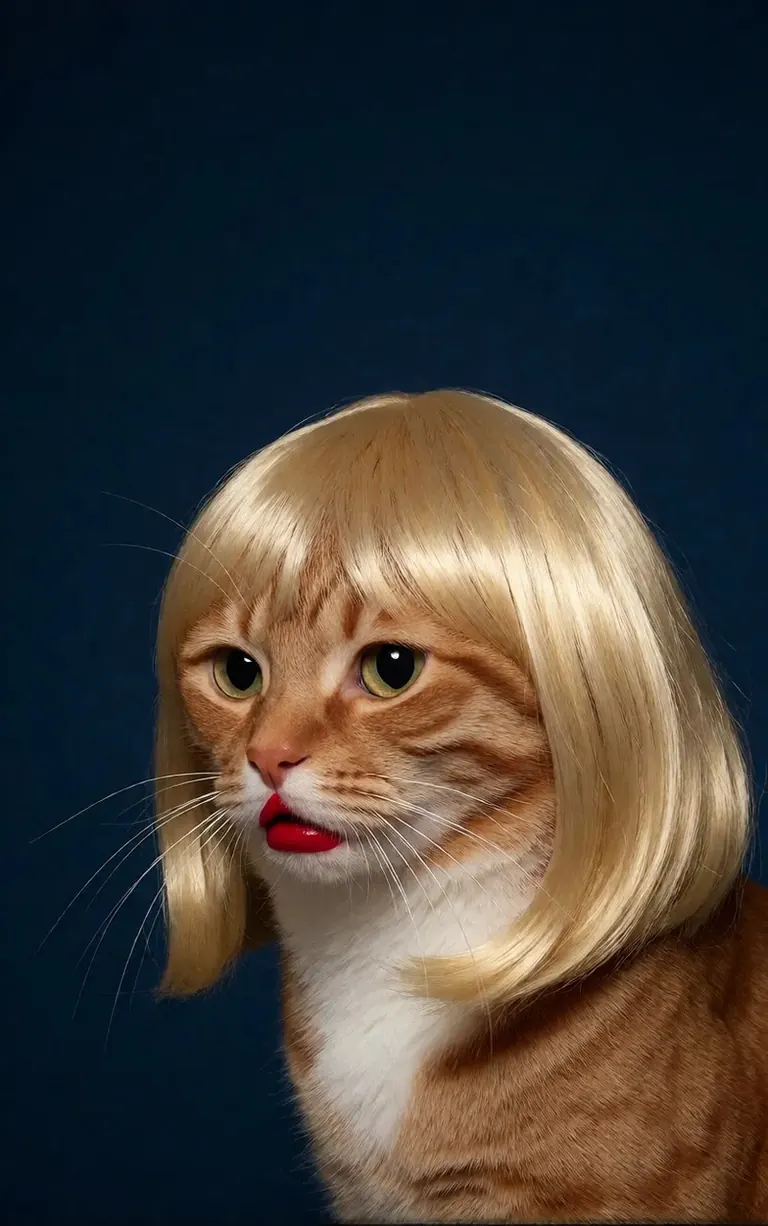
/render <realism-enhancer-krea2> A minimalist, high-contrast studio portrait captures an orange tabby cat wearing a perfectly styled blonde wig with straight bangs, looking off-camera with a grumpy expression and wearing bright red lipstick, featuring rich composition grading and insane sharpness. The cat's smooth, light brown and white fur stands out sharply against a flat, deep dark blue background that serves as a vast expanse of clean negative space. The tight, centered flash composition highlights the realistic texture of the shiny blonde synthetic hair, the cat's long white whiskers, and the glossy red pout, creating a bizarre, authentic, and starkly humorous artistic study.
Krea2 · LoRA6vidit9によるレンダー via BunchaPrompts
2. ModelTrends ShortCodes
ModelTrends.aiのすべてのモデルページにはShortCodeボックスがあります。そのShortCodeはPirateDiffusion内のモデル名で、コマンドに入れるとボットがそのモデルを読み込みます。何千ものモデル、LoRA、埋め込みが事前にロードされているので、ダウンロードは不要です。
ボット内では、/conceptsでモデル一覧を表示し、/concept /searchで名前から検索できます。
/concepts
/concept /search:anime
カタログを閲覧し、モデルを開いてShortCodeをコピーしてください。 ModelTrends.ai
3. パラメータ
サンプルコマンドのパラメータは元のレンダリング設定です。同じ種類の画像を得るにはコピーしてください。シードを変えると新しい画像が得られます。
/size:1024x1024 | 幅と高さ(ピクセル単位)。現在のモデルは1024以上でレンダリングします。1024x1024は正方形、1024x1536は縦長です。 |
/portrait /tall /landscape /wide | サイズの代わりに形状のショートカット。 |
/steps:25 | レンダリングのノイズ除去ステップ数。多いほど遅くなります。 |
/guidance:7 | プロンプトの厳密さ。モデルごとに最適な範囲があります。 |
/seed:123456 | ランダムシード。同じシード、ガイダンス、サンプラー、モデルなら同じ画像が得られます。 |
/sampler:dpm2m /karras | サンプラー。/karrasはそのモードを持つサンプラー用。/samplerだけで一覧表示。 |
/clipskip:2 | テキストエンコーダの最後の層をスキップ。一部モデルは2層用に訓練されています。 |
/images:4 | 1コマンドで生成する画像数。 |
パラメータはすべての言語で英語のままです。ボットはそのまま読み取ります。
4. 重み、ポジティブとネガティブ
二重丸括弧は単語の重みを増やし、二重角括弧は減らします。ネガティブ(画像に入れたくないもの)は角括弧で囲み、通常は最後に置きます。
/render <krea2> /size:1024x1024 sketch painting, a rock climber scaling a ((steep cliff)), icy winds, frozen landscape [[blurry, text, watermark]]
他のツールからコピーしたプロンプトは(word:1.3)のような重みを含むことがあります。/parser:newを追加するとボットが読み取ります。
/render <krea2> /size:1024x1024 /parser:new sketch painting, a rock climber scaling a (steep cliff:1.3), icy winds, frozen landscape
SDXLモデルではネガティブ埋め込みをネガティブ内に強度付きで入れます。例:
[[<fastnegative-xl:-2>]]
5. LoRAとレシピ
LoRAはキャラクター、スタイル、カメラ動作など1つの要素を追加する小さなモデルです。ShortCodeもあり、プロンプトと一緒にコマンドで使います。ModelTrendsページでLoRAのベースモデルがわかるので、最適な結果のためにそのベースと組み合わせてください。
/render <realism-enhancer-krea2> A minimalist, high-contrast studio portrait captures an orange tabby cat wearing a perfectly styled blonde wig with straight bangs, looking off-camera with a grumpy expression and wearing bright red lipstick, featuring rich composition grading and insane sharpness. The cat's smooth, light brown and white fur stands out sharply against a flat, deep dark blue background that serves as a vast expanse of clean negative space. The tight, centered flash composition highlights the realistic texture of the shiny blonde synthetic hair, the cat's long white whiskers, and the glossy red pout, creating a bizarre, authentic, and starkly humorous artistic study.
Krea2 · LoRA6vidit9によるレンダー via BunchaPrompts
レシピは単語と設定の保存された束で、ハッシュタグで呼び出します。/recipesで一覧表示。
/render <krea2> /size:1024x1024 a fantasy knight in full armor, white background #boost
6. ワークフロー:画像、動画、音楽
ワークフローとは、Graydientのサーバー上で実行される完成したジョブのことです。適切なモデルと設定を読み込むので、コマンドを送るだけで済みます。画像ワークフローは/renderと同じパラメーターを使います。例えばKrea2ワークフローの場合:
/workflow /run:krea2 /size:1024x1024 a high quality real photo of a pirate with long black hair, a scraggly beard and mustache, wearing sunglasses, a gold chain necklace and a golden chalice, having pizza with a giant parrot pouring him champagne
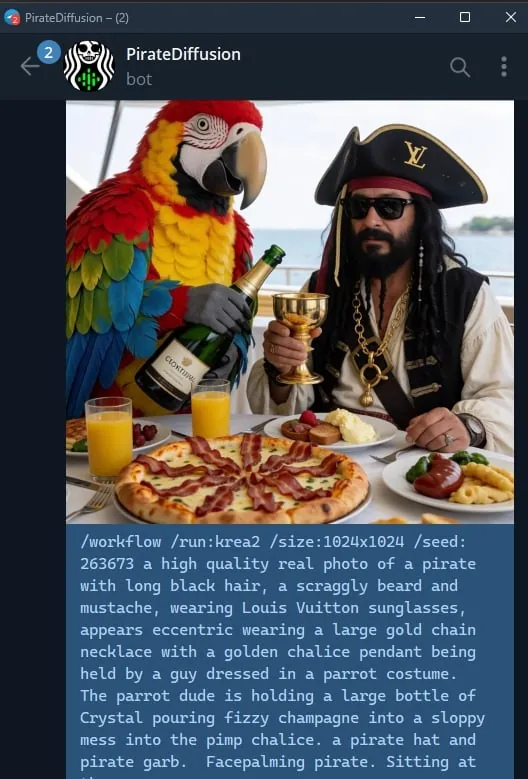
ビデオと音声モデルはワークフローとして動作します:/workflow /run:とワークフローのスラッグ、その後にプロンプト。ModelTrendsはワークフローのShortCodeボックスに/wf /run:としてスラッグを表示します。これは同じコマンドの短縮形です。
スラッグの最初の単語はワークフローの入力を示します:
video- | テキストからビデオ:プロンプトだけでクリップを作成。 |
animate- | 画像からビデオ:画像に返信してコマンドを送ると、プロンプトが動きを指定。 |
omni- | どちらでも可能:プロンプトだけ、または返信画像から動作。 |
ビデオLoRAはスラッグとプロンプトの間に入れます。画像入力用のLoRAもテキストからビデオのワークフローで動作しますが、animateワークフローで画像に返信すると最適です。サンプルカードに記載あり。ライブ例:
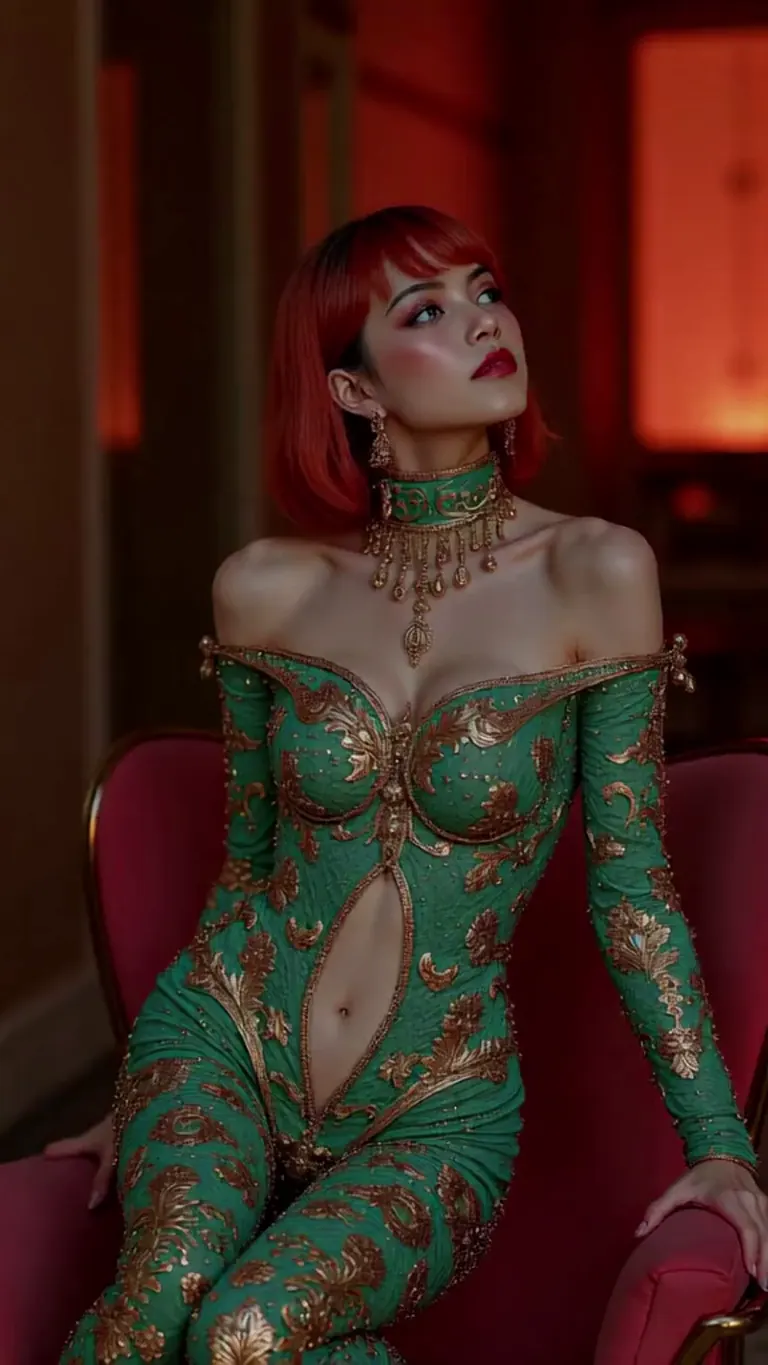
wan2.2-i2v-high-Screen Flood(屏幕淹水)
/workflow /run:video-wan22 <high-screen-flood-wan> then water suddenly rushes up from the bottom and submerges the entire screen.
画像入力で最適:画像に返信し、代わりに/run:animate-wan22を使ってください。
Wan · LoRAjeh88615によるレンダー via BunchaPrompts
ワークフローはメッセージ末尾に/slot1:などのスロット値を追加できます。各ワークフローのページでスロットの役割が説明されています。音楽ワークフローは歌詞をプロンプトに、ジャンルをスロットに入れます。
7. ModelTrendsからプロンプトをコピー
ModelTrendsのモデルページの例レンダリングにはコピーボタンがあり、PirateDiffusionパラメータ付きのプロンプトを取得できます。/renderとモデルのShortCodeの後に貼り付けてください。
プロンプトは自分の言語で書けます。/translateを追加するとレンダリング前にボットが翻訳します。
/render <krea2> /size:1024x1024 /translate un caballero de fantasía con armadura completa, fondo blanco
詳しいバージョン(2024年のSDXLガイド)
これらのガイドは2024年のSDXL向けに書かれました。コマンドは今も使えます。モデルやサイズは上記のものです。